
Desktop App Icon Generator, Create Icons for Windows & macOS
Learn how to use a desktop app icon generator to create stunning icons for Windows and macOS applications. Discover the right sizes, formats, and design tips for professional desktop icons.

IconFast
Author
Creating a professional desktop application requires more than just great functionality - it needs a stunning icon that captures users' attention. Iconfast can help you create high-quality icons for both Windows and macOS platforms quickly and efficiently.
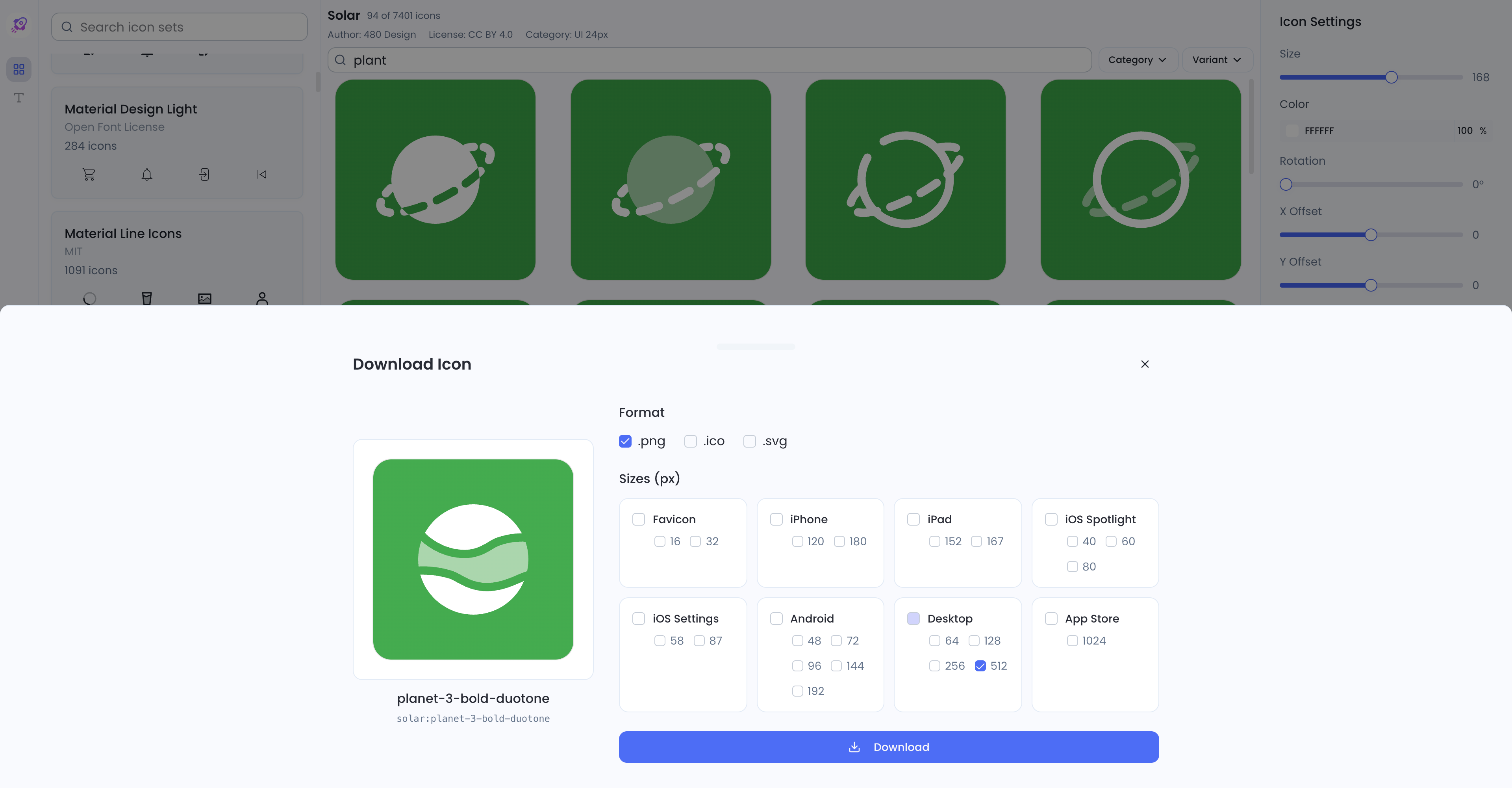
Table of Contents
- Why Desktop App Icons Matter
- Desktop Icon Size Requirements
- 5 Tips for Designing Desktop App Icons
- How to Generate Desktop App Icons Quickly
- Converting Icons for Different Platforms
- Common Mistakes to Avoid
Why Desktop App Icons Matter
Your desktop app icon is often the first thing users see. According to Nielsen Norman Group, users form impressions about software within 50 milliseconds of seeing it. A well-designed icon:
- Builds trust and professionalism
- Increases recognition on users' desktops
- Differentiates your app from competitors
- Improves user experience by making your app easy to find
Desktop Icon Size Requirements
Different operating systems require different icon sizes. Here's what you need to know:
Windows Icon Sizes (ICO Format)
Windows uses the ICO format, which can contain multiple sizes in a single file:
- 16x16 pixels - Small icons, taskbar
- 32x32 pixels - Standard icons
- 48x48 pixels - Large icons
- 64x64 pixels - Extra large view
- 128x128 pixels - High DPI displays
- 256x256 pixels - Extra large and high DPI
macOS Icon Sizes (ICNS Format)
macOS requires icons in the ICNS format with these sizes:
- 16x16 pixels - Mini icon
- 32x32 pixels - Small icon
- 64x64 pixels - Medium icon
- 128x128 pixels - Large icon
- 256x256 pixels - Extra large
- 512x512 pixels - Retina displays
- 1024x1024 pixels - App Store and high-resolution displays
5 Tips for Designing Desktop App Icons
1. Keep It Simple and Recognizable
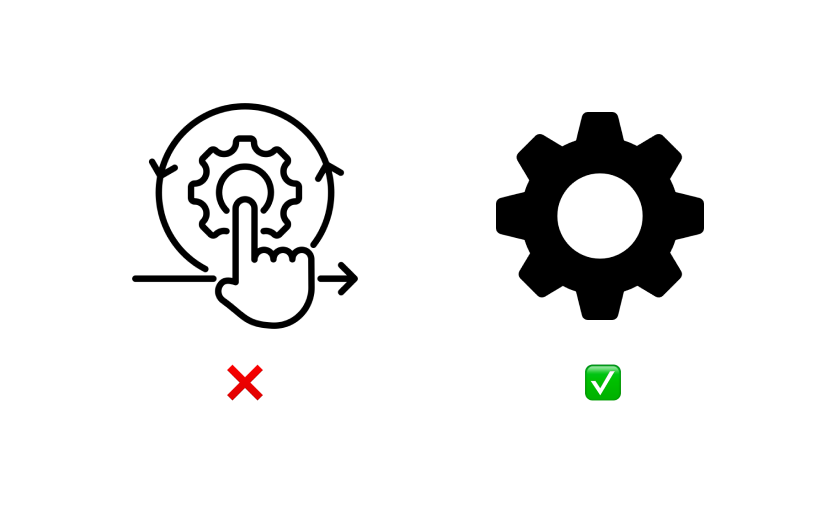
The best desktop icons are simple yet distinctive. Avoid cluttering your icon with too many elements. Users should be able to recognize your app instantly, even at small sizes like 16x16 pixels.
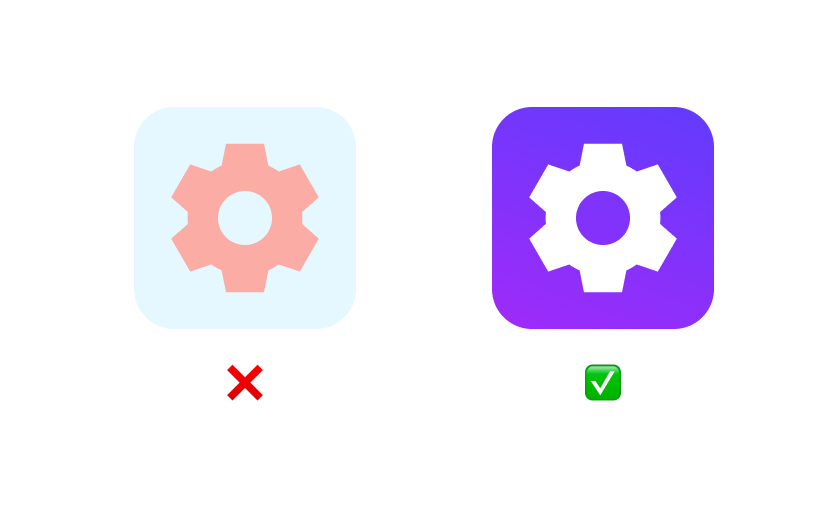
2. Use Appropriate Colors
Choose colors that:
- Reflect your brand identity
- Stand out against various desktop backgrounds
- Maintain visibility in both light and dark modes
3. Follow Platform Design Guidelines
Each platform has its own design language:
- Windows: Fluent Design with depth, motion, and material
- macOS: Clean, consistent with a slight 3D appearance
4. Test at Multiple Sizes
Always preview your icon at all required sizes. A design that looks great at 512x512 might lose important details at 16x16. Ensure your icon remains clear and recognizable across all sizes.
5. Avoid Text in Icons
Text becomes unreadable at small sizes. Instead, use symbols or graphics that represent your app's function. If your brand requires text, consider using only an initial or logo mark.
How to Generate Desktop App Icons Quickly
Designing icons for multiple platforms and sizes can be time-consuming. Fortunately, a desktop app icon generator can streamline this process significantly.
Use Iconfast for Desktop Icons
Iconfast is a powerful free app icon generator that makes creating desktop app icons simple and fast. Here's why developers and designers love it:
- 200,000+ icons to choose from
- Customizable colors and backgrounds
- Multiple export formats including PNG for all platforms
- Instant generation of all required sizes
- No design skills required
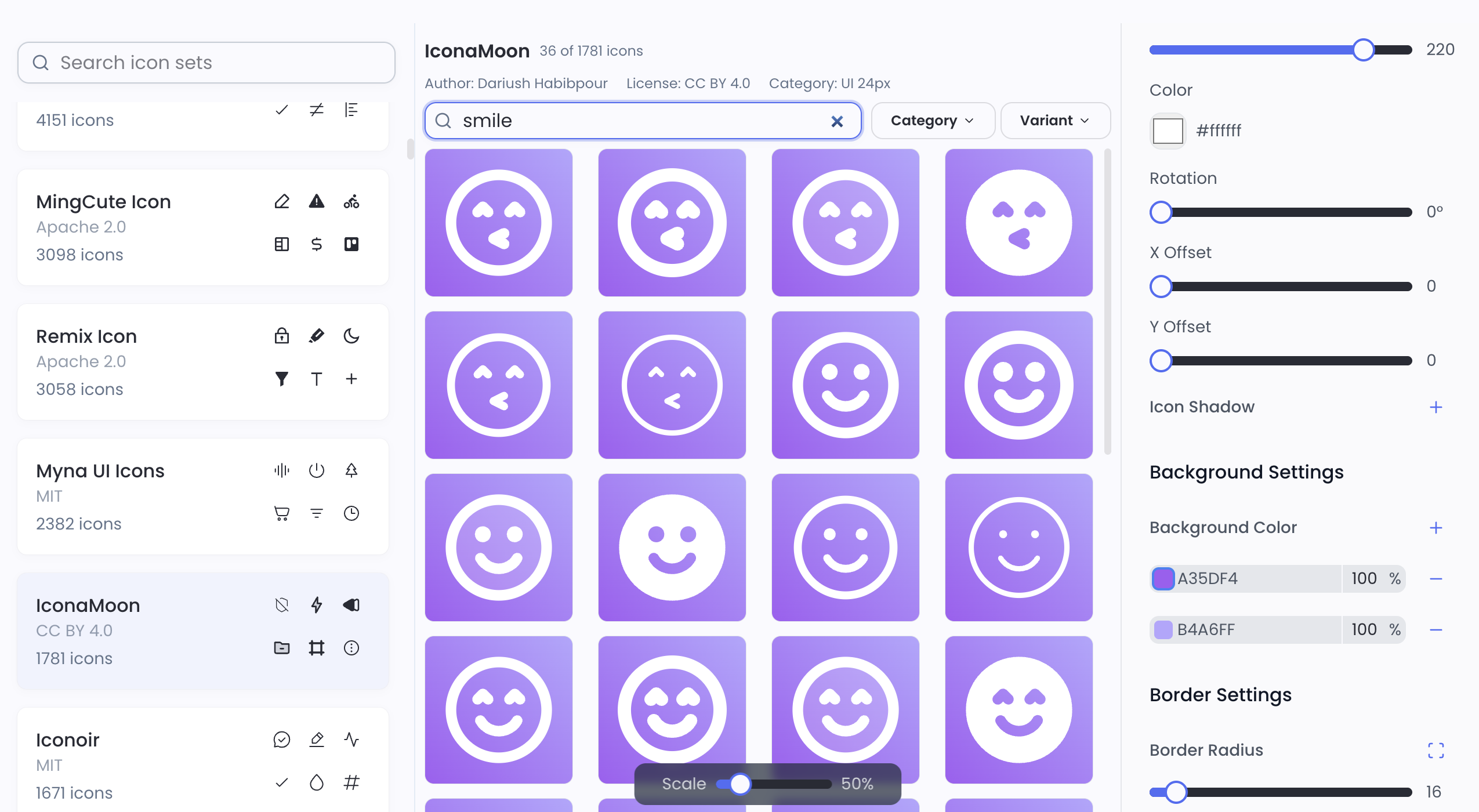
With Iconfast, you can:
- Choose from thousands of professional icons
- Customize colors, backgrounds, and styles
- Download icons in all required sizes with one click
The user-friendly interface means anyone can create professional desktop app icons in minutes, regardless of design experience.
Converting Icons for Different Platforms
After generating your base icon with a desktop app icon generator, you may need to convert it to platform-specific formats:
For Windows (ICO)
Use tools like ImageMagick or online converters to package your PNG icons into an ICO file containing all required sizes.
For macOS (ICNS)
Use Xcode's Asset Catalog or command-line tools like iconutil to create ICNS files from your PNG icons.
Common Mistakes to Avoid
When using a desktop app icon generator, watch out for these common pitfalls:
- Using low-resolution source images - Start with at least 1024x1024 pixels
- Ignoring platform conventions - Windows and macOS have different aesthetic expectations
- Forgetting transparency - Ensure proper transparency for seamless desktop integration
- Not testing on actual devices - Always verify how your icon looks on real desktops
Conclusion
A desktop app icon generator is an essential tool for any developer or designer creating Windows or macOS applications. By following the size requirements and design tips outlined above, you can create icons that make your app stand out on users' desktops.
Iconfast offers the fastest and easiest way to generate professional desktop app icons. With its extensive icon library and intuitive customization options, you can have the perfect icon for your application in minutes.
Start creating your desktop app icon today and give your application the professional appearance it deserves!
